 Writing Folder
Reclaiming the Green Button
The green traffic-light button on macOS used to do something genuinely helpful – or at least a lot more helpful than what it does now. You’d click it, or Option-click it, and your window would grow to a sensible size. Usually it would make the window grow taller. Maybe a bit wider if the app thought it needed it. The window remained a window. You could still see the desktop behind it, still click on another app, still reach the Dock. It was called Zoom, and though not without its critics, in retrospect it was one of those quiet, well-judged interface decisions that you never thought about until it was gone.
It is now very much gone. Apple broke it twice, a decade apart, and if – like me – you skipped a few macOS versions, the experience of returning to macOS at Tahoe can be very annoying.
Break 1: Yosemite (2014)
In OS X Yosemite (10.10, October 2014), Apple changed the green button from Zoom to Full Screen. Clicking it no longer resized the window sensibly – it banished the entire app into its own Space, complete with a sluggish animation, no Dock, no menu bar, and no ability to click on anything else. The old Zoom behaviour was demoted to a modifier: hold Option, click the green button, and you’d get the old resize-to-fit behaviour. Annoying, but workable. For the next eight years – through El Capitan, Sierra, High Sierra, Mojave, Catalina, Big Sur, and Monterey – Option-click on the green button reliably triggered the old Zoom. Muscle memory adapted. Life went on.
Break 2: Sequoia (2024) – the really bad one
In macOS Sequoia (15, September 2024), Apple changed the green button again. Hovering over it now produces a popover menu offering to tile the window into halves, quarters, or various arrangements. Option-clicking no longer triggers the old Zoom – it now performs a “Fill”, which snaps the window to the full screen dimensions (width included) with tiling margins.
The old Zoom behaviour, the one that had survived as a modifier-key workaround since 2014, was quietly removed from the green button entirely.1
None of this is a new complaint. People have been annoyed about the green button since 2014. There’s a well-known OSXDaily guide from the Yosemite era showing how to remap it with BetterTouchTool, a long-running MacRumors thread full of people who just want a maximize button, several posts on the BTT community forums asking for vertical-only maximisation, and a TidBITS piece on taming Sequoia’s tiling. But as far as I could find, nobody has stitched all the pieces together into one guide – specifically: intercepting the green button on Sequoia or Tahoe, using a script that makes the window full height while preserving its width, working around the tiling popover, and explaining why the simpler approaches (BTT’s built-in Zoom action, Option-click) no longer work. So here we are.
What I actually want
Vertical space on a laptop is precious. Most applications don’t benefit from being wider than they already are – think for example of messaging apps, Finder in list view, Transmission, BBEdit, even System Settings (which hilariously can’t be resized horizontally, making it the only app that already behaves the way I want). What I want is dead simple:
Keep the window’s current width. Make it full height.
Top of the usable screen to just above the Dock (which in my case is on auto hide and show, so it rises to the full height of the screen minus the menu bar). No tiling. No full-screen Space. No change to horizontal position or width. Just: be taller.
The old Zoom behaviour often did exactly this, or close enough. Apple took it away and replaced it with something designed for people who want their Mac to work like a tiling window manager or, worse, like an iPad.
I don’t use tiling – the odds of any given app’s content fitting neatly into exactly half or a third of the screen width are vanishingly low, and plenty of apps actively degrade their UI when constrained this way (collapsing sidebars, hiding controls, reflowing content into unreadable columns). I don’t use Full Screen – it locks you into a Space, hides the Dock, and removes the ability to click off the app to switch to another. It is the single-tasking paradigm that the Mac was invented to escape.2 ‘Fill and Arrange’, one of the options in the green button’s dropdown menu, comes closest to what I want – but not quite, because it still snaps the window to a predetermined width that has nothing to do with the application’s content, and if you drag the window to rearrange it, it resets to its previous size.
Incredibly, even resizing manually by dragging doesn’t reliably work. If you leave Tiling enabled, dragging a window toward the menu bar – you know, so you can start making it full height – causes macOS to tile it instead. For something like a browser window, that can mean being crushed into an unusably narrow half-screen width. And if you then try to move it, it resets to its previous size. You genuinely cannot win.
Enter BetterTouchTool
BetterTouchTool (BTT) is a macOS utility that lets you remap and customise almost every input on your Mac – trackpad gestures, keyboard shortcuts, mouse buttons, Touch Bar, and crucially for our purposes, the window traffic-light buttons. It’s been around since 2009, has a 45-day trial and costs $15 for two years of updates or $25 for a lifetime licence. Though it has what I can only describe as an interface that is obtuse at the best of times, and has definitely become worse with the transition to Liquid Glass, the tool itself is quite powerful, and adds a whole suite of customisation options that I wish I didn’t have to download a third party application to do.
Critically, BTT can intercept a click on the green window button and replace the default macOS behaviour with any action you choose. That’s exactly what we need.
Step 1: Create the trigger
Open BetterTouchTool’s configuration window. In the top bar, click “Automations & Named & Other Triggers” – it’s the section for special triggers that don’t fit into the trackpad/mouse/keyboard categories.
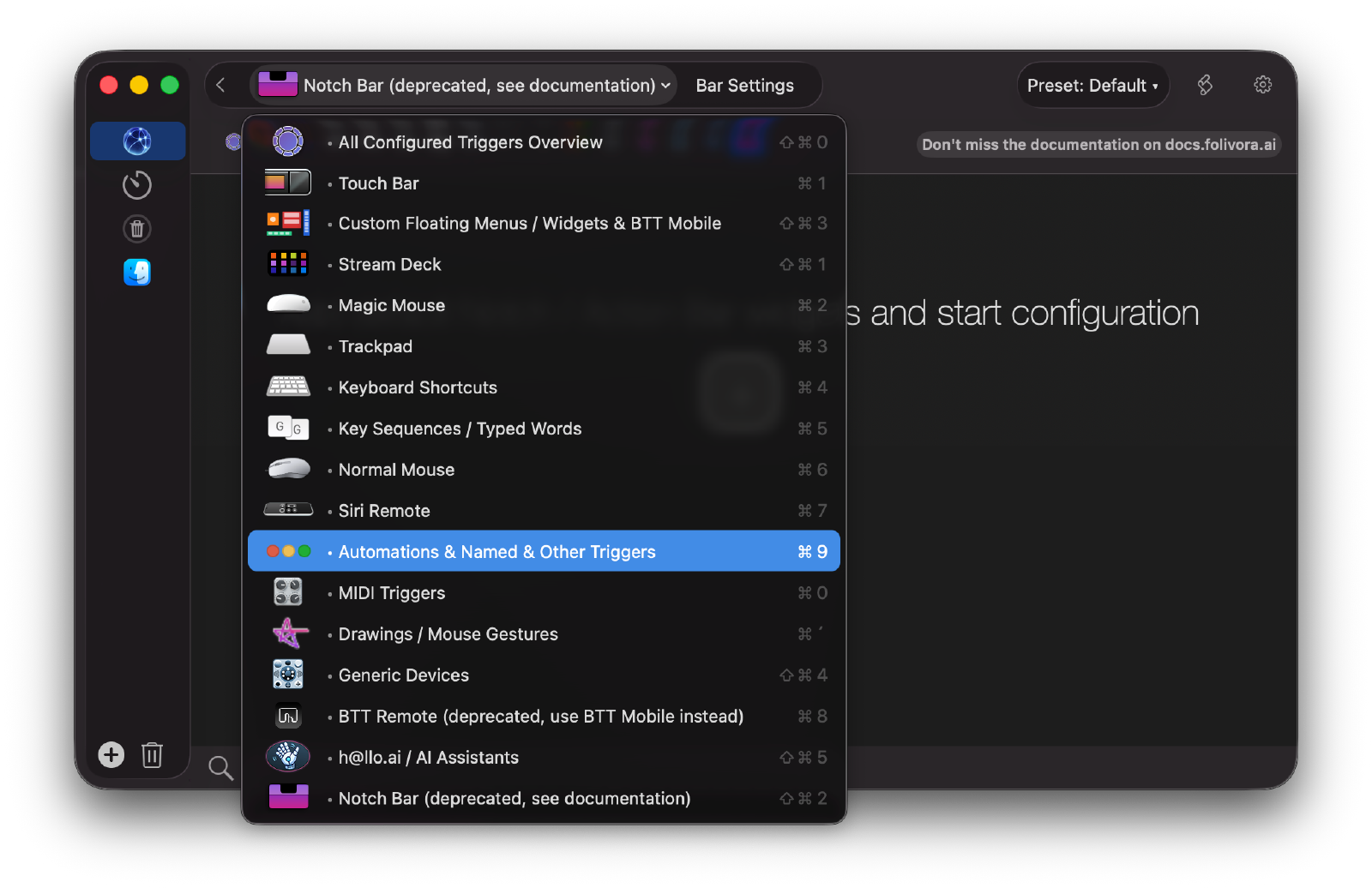
Click the "+" button at the bottom of the left-hand trigger list. In the trigger type picker, select “Leftclick Green Window Button”. This creates a trigger that fires only when you click the green dot on any window’s title bar – not on any other left-click anywhere else.
Step 2: Set up the action
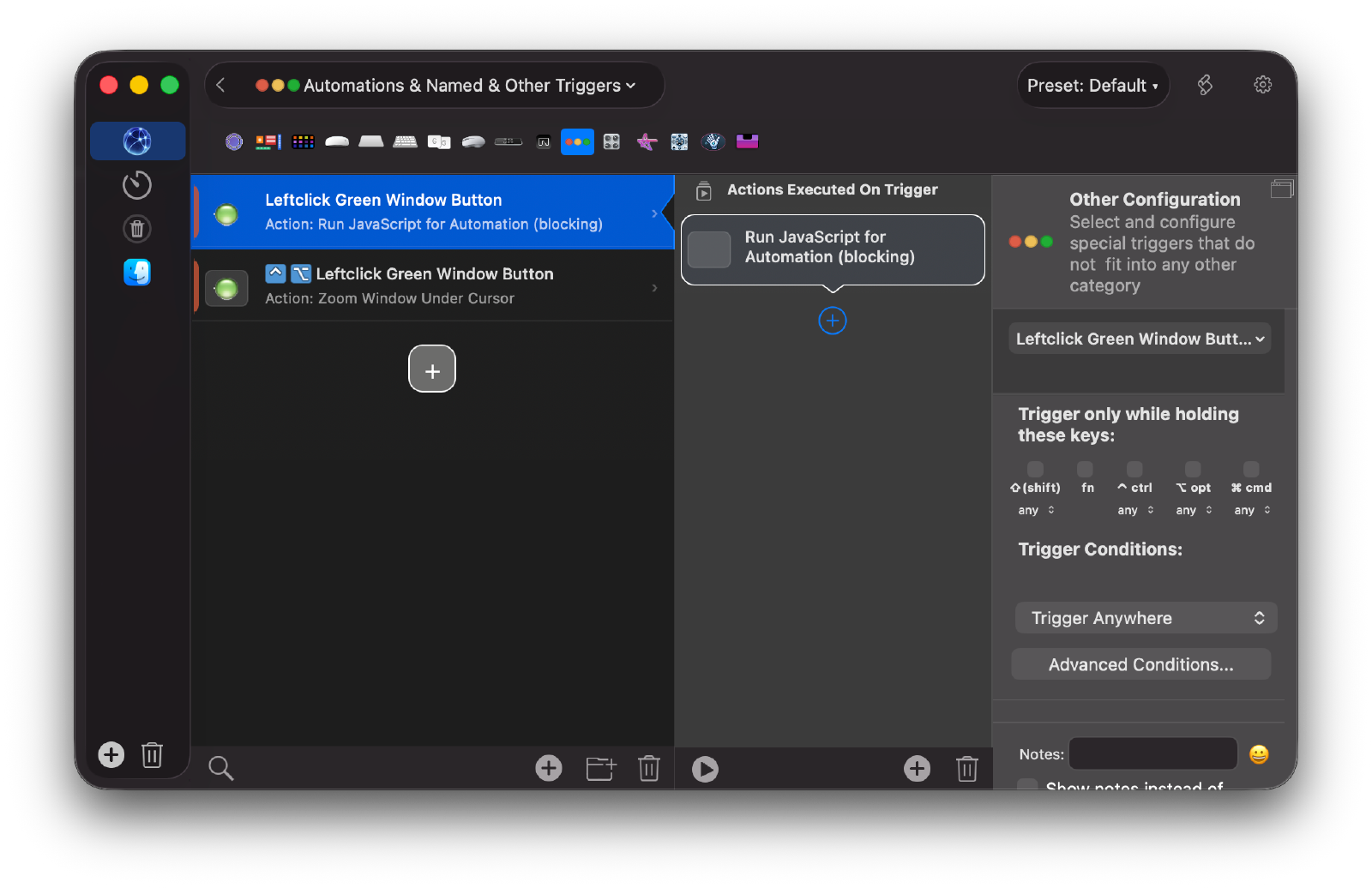
With your new trigger selected, click the action area on the right to add an action. Choose “Run Apple Script (blocking)”.
Now – and this is important – click the “Source Type” dropdown (it defaults to “Apple Script”) and change it to “Apple JavaScript for Automation (JAX)”.3 This gives us access to macOS’s Objective-C bridge, which we need to query the actual usable screen dimensions.
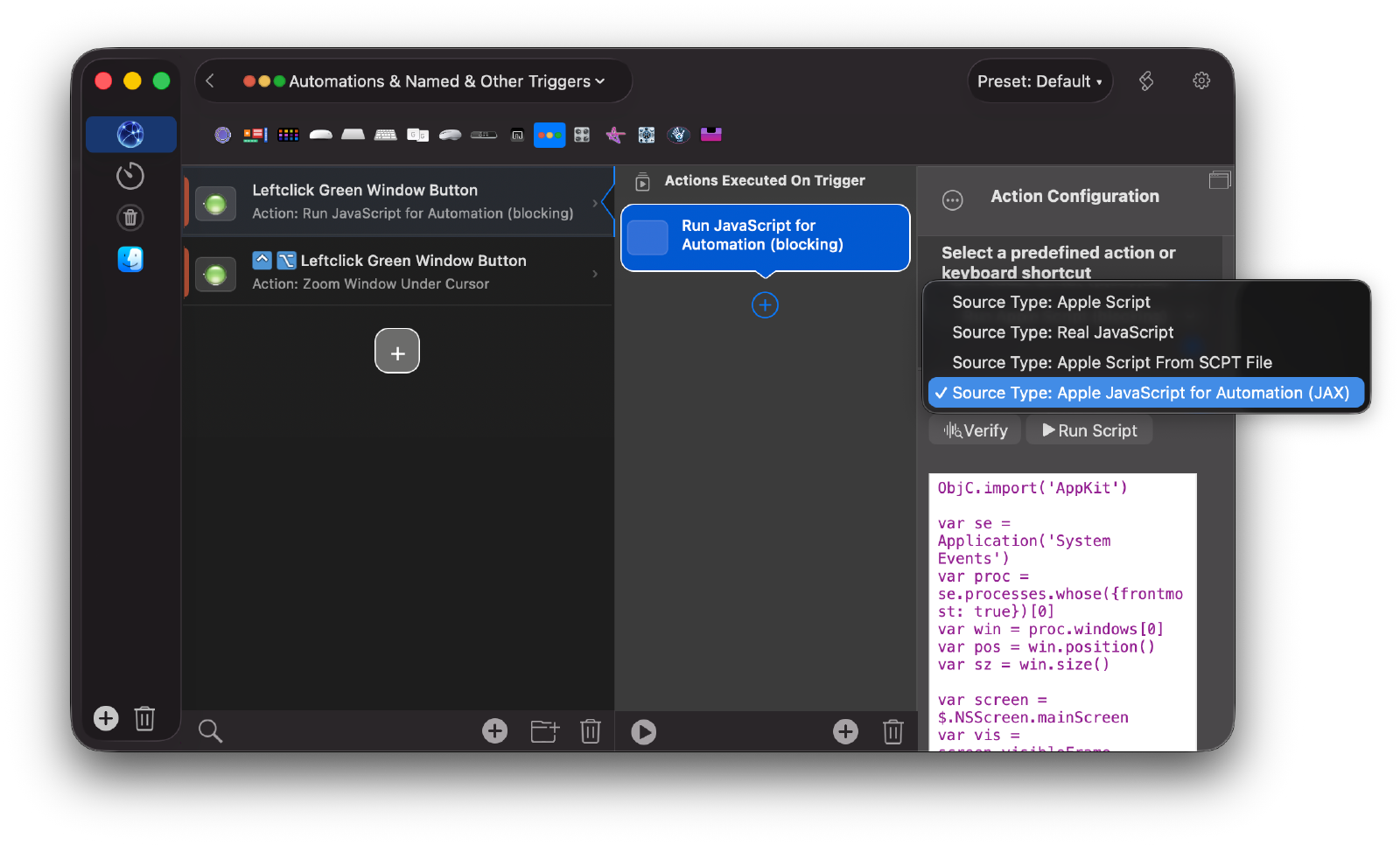
Paste in the following script:
ObjC.import('AppKit')

var se = Application('System Events')
var proc = se.processes.whose({frontmost: true})[0]
var win = proc.windows[0]
var pos = win.position()
var sz = win.size()

var screen = $.NSScreen.mainScreen
var vis = screen.visibleFrame
var full = screen.frame

var topY = Math.round(full.size.height - vis.origin.y - vis.size.height)
var usableHeight = Math.round(vis.size.height)

win.position = [pos[0], topY]
win.size = [sz[0], usableHeight]
What this does: it reads the frontmost window’s current position and size, queries NSScreen for the usable screen rectangle (the area between the menu bar and the Dock), and then repositions the window to the top of that rectangle and stretches it to the full usable height – without touching the width or horizontal position.
Make sure the “Function to call” field is empty. If there’s anything in it (BTT sometimes pre-fills “someJavaScriptFunction”), delete it – otherwise you’ll get an OSAScriptErrorNumberKey = "-1708" error.
Step 3: Try it
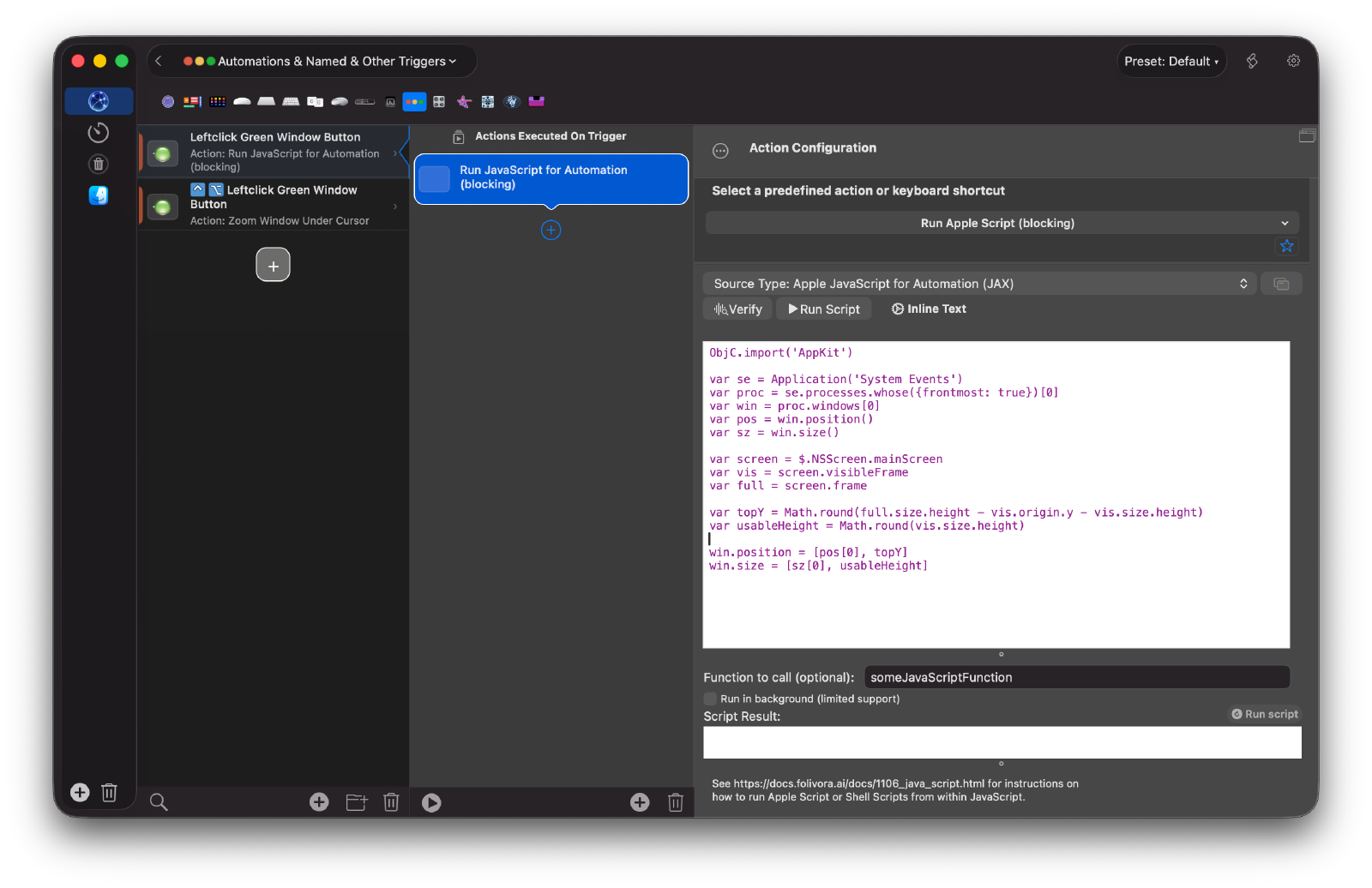
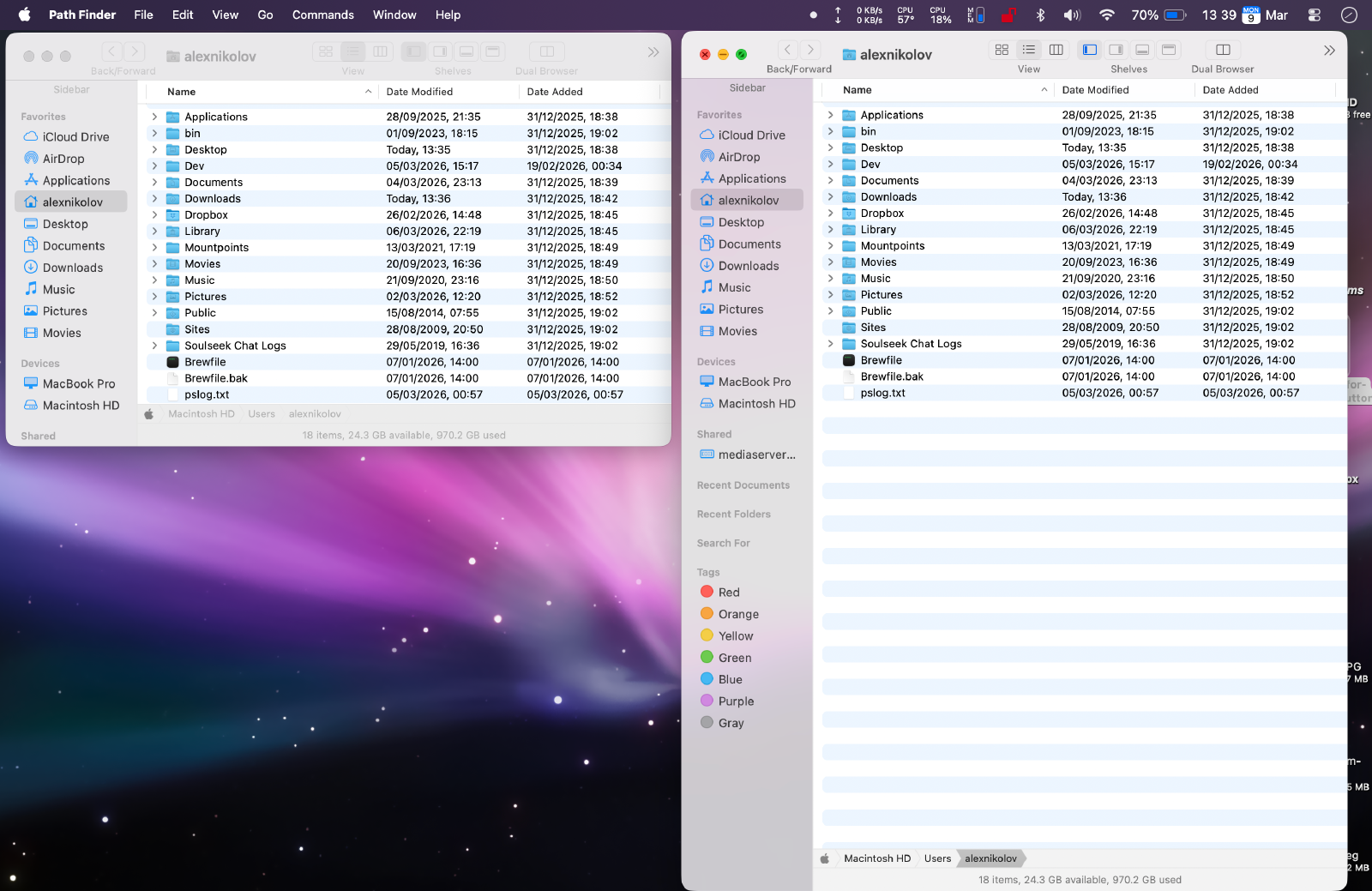
Open a Finder window, make it smallish and somewhere in the middle of the screen, then click the green button. The window should snap to full height while staying at its current width and horizontal position.4
Optional: Restore Option-click Zoom
If you’d also like Option-clicking the green button to trigger the traditional macOS Zoom behaviour (the app-defined “useful resize”, which may also change width), you can add a second trigger:
- Add another “Leftclick Green Window Button” trigger.
- In the trigger configuration on the right, change the opt modifier dropdown from “any” to “required”.
- For the action, choose the built-in “Zoom Window Below Cursor” (under Window Interaction).
- Go back to your first trigger and change its opt dropdown to “not pressed” – this ensures the two triggers don’t overlap.
Now a plain click gives you the full-height behaviour, and Option-click gives you the classic Zoom.
The tiling popover problem
There is one small remaining annoyance: in Tahoe, hovering over the green button for about a second triggers a tiling popover menu. BTT’s trigger fires on click, but if your cursor lingers on the green dot, macOS shows its popover and your click may land on a tiling option rather than reaching BTT.
In practice, a quick deliberate click usually beats the popover. If it becomes a persistent irritation, you can disable some of the associated tiling behaviour in System Settings → Desktop & Dock by toggling off the drag-to-tile options, though as of Tahoe there isn’t a clean toggle specifically for the green button popover.
Why not just use the built-in Zoom action?
BTT has a built-in action called “Zoom Window Below Cursor” which calls the native macOS performZoom: API. You might think this is the obvious solution – and for years, on older macOS versions, it was. The problem is that Zoom is app-defined: each application decides what “zoomed” means, and many apps will change the width as well as the height, or do something else entirely. The JavaScript approach above is deterministic – it always keeps your width and always goes full height, regardless of what the app thinks Zoom should mean.
That’s it. This approach should also work on earlier versions, though you’re less likely to need it. Three minutes of setup to undo several years of Apple slowly making windows worse.
Final Thoughts
I should say: I’m not against change per se. Operating systems evolve, interfaces get rethought, and most of the time the right response is to adapt and move on. Not every UI change is a regression – plenty are genuine improvements, and plenty more are lateral moves where reasonable people can disagree.
The old Zoom behaviour had its critics too. But when you do make changes – especially ones that override a decade of established muscle memory – you ought to give users a way to change things back. A toggle in System Settings, a defaults write command, something. The fact that Apple offers no way to restore the old green button behaviour would be frustrating enough if the new behaviour were merely different. It’s considerably more frustrating when the new behaviour is actively, measurably worse – a hover popover that fights your clicks, a “Fill” that ignores your window width, tiling that resets your layout the moment you drag anything.
Apple used to be better about this. The Mac used to be the platform where you could make it work the way you wanted. Increasingly, it’s the platform where you download a third-party utility to undo the choices Apple made for you.
I missed this break in real time. Beginning with Mojave and eventually continuing until Monterey I started skipping or slow-upgrading the operating system updates, usually updating only when forced by (my then browser of choice) Safari Technology Preview ceasing to support the OS. In 2023 I got a desktop gaming PC and gradually switched to using it full-time. My old 2018 MacBook Pro became more and more sluggish and eventually the battery gave out completely, and I didn’t replace it until December 2025, at which point the new machine came with Tahoe. I went from Monterey straight to Tahoe, skipping Ventura, Sonoma (the last to support my old MacBook), and Sequoia entirely, and experienced the full accumulated delta in one go. The green button had become unrecognisable. ↩︎
Full Screen mode on macOS has always struck me as an answer to a question nobody was asking. “What if we took the thing that makes a desktop operating system a desktop operating system – overlapping, freely-arranged windows – and got rid of it?”. It actually used to be a common criticism of Mac OS X that the green button didn’t actually maximise windows like its equivalent on PCs did – but on Windows maximising a program doesn’t obscure the Start Menu or hinder your ability to switch programs with the GUI. ↩︎
Yes, it says JAX, not JXA. BTT has its own relationship with acronyms. ↩︎
The screenshot below shows Path Finder rather than Apple’s Finder. Path Finder is a long-standing third-party Finder replacement that offers dual-pane browsing, a more capable toolbar, and – crucially for me – a sidebar where folders still have distinct, colourful icons rather than the identical monochrome folders that Apple’s Finder now uses. Its window chrome also still looks like a Mac application rather than a translucent soap bubble. The script works identically on both; it resizes whatever the frontmost window happens to be. ↩︎